How to Fix Wireless Gaming Keyboard Connection Drops
This article contains affiliate links. If you buy through them, I earn a small commission at no extra cost to you. I only recommend keyboards I’ve actually tested. As an Amazon Associate I earn from qualifying purchases.
People love telling you wireless gaming keyboards “just aren’t reliable enough” for serious play. I’ve heard it on every forum thread and under every Logitech G915 review since the thing launched. Honestly? Most of the time, the board isn’t the problem. The setup is — and wireless gaming keyboard connection drops are almost always a fixable environmental issue, not a defect.
I’ve put close to 40 wireless boards through the ringer over the last few years. Logitech LIGHTSPEED, Razer HyperSpeed, Corsair SLIPSTREAM, Keychron, ASUS ROG, the lot. When one starts stuttering or dropping inputs mid-match, the cause almost always comes down to four or five fixable things. The flow below is the exact one I run before I’ll even consider blaming the keyboard.
Five minutes. That’s usually all it takes.
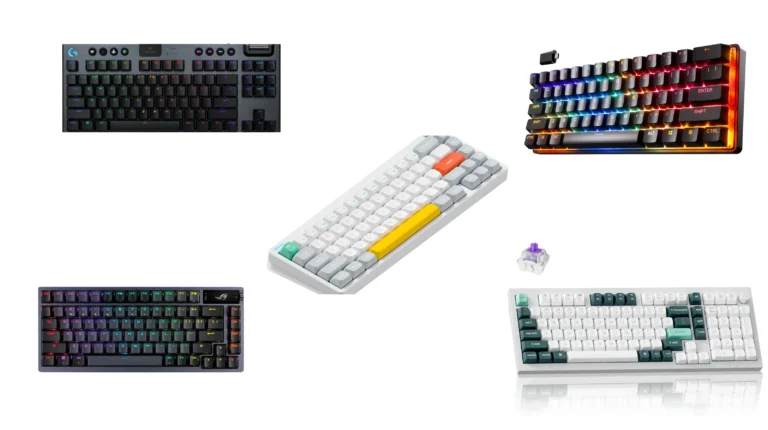
Wireless gaming keyboards I actually trust to stay connected
Before the fixes, here’s the short list. If you’ve already done the troubleshooting and your current board still drops, these are the ones I keep going back to. Pick the row that matches how you actually use a keyboard, not the one with the loudest spec sheet.
| Best For | Keyboard | Why It Earns the Spot | Price Range |
|---|---|---|---|
| Most reliable overall | Logitech G915 TKL LIGHTSPEED | Rock-solid 1ms wireless I haven’t had drop on me in 18+ months of daily use | $$$ |
| Best value wireless | Keychron K8 Pro Wireless | ~$100, dual 2.4GHz + Bluetooth, hot-swap, surprisingly stable link | $ |
| Crowded RF environments | Razer BlackWidow V4 75% | HyperSpeed handles dense 2.4GHz spaces — offices, dorms, apartment buildings — better than most | $$$ |
| Pro-tier competitive | ASUS ROG Azoth | 8000 Hz polling wired, stable 2.4GHz, you can hot-swap modes mid-session | $$$ |
| Best multi-device wireless | Keychron Q1 Pro Wireless | Two 2.4GHz slots + three Bluetooth slots, gasket-mounted, built like a tank | $$ |
If you want the wider list and the boards I’ve passed on, I keep my picks for the best wireless gaming keyboards updated as new ones hit the bench.
What’s actually causing your wireless gaming keyboard connection drops
In my testing, the causes break down roughly like this, in order of how often I see them:
- USB 3.0 port interference — by far the most common culprit and the most ignored
- Crowded 2.4GHz spectrum — your dongle fighting with Wi-Fi, mice, and headsets for airtime
- Power-saving features kicking in on the keyboard or the host PC
- Outdated firmware on the keyboard, the dongle, or both
- Battery sag — old or low cells can’t push a clean signal
- Physical distance or metal obstruction between the dongle and the board
Notice what’s not on that list: “wireless is bad.” Wireless gaming gear has been genuinely competitive with wired for at least four years now. The G Pro X Superlight wouldn’t be the most-used mouse in pro Counter-Strike if the tech weren’t there. The same engineering powers the keyboards.
Here’s the catch though. When wireless gaming keyboard connection drops do happen, fixing them takes a slightly different mindset than fixing a wired board. You’re troubleshooting a radio link, not a cable.
The 5-minute fix flow for wireless gaming keyboard connection drops
Run these in order. Don’t skip ahead — the issue usually shows up by step two.
1. Move the dongle, not the keyboard
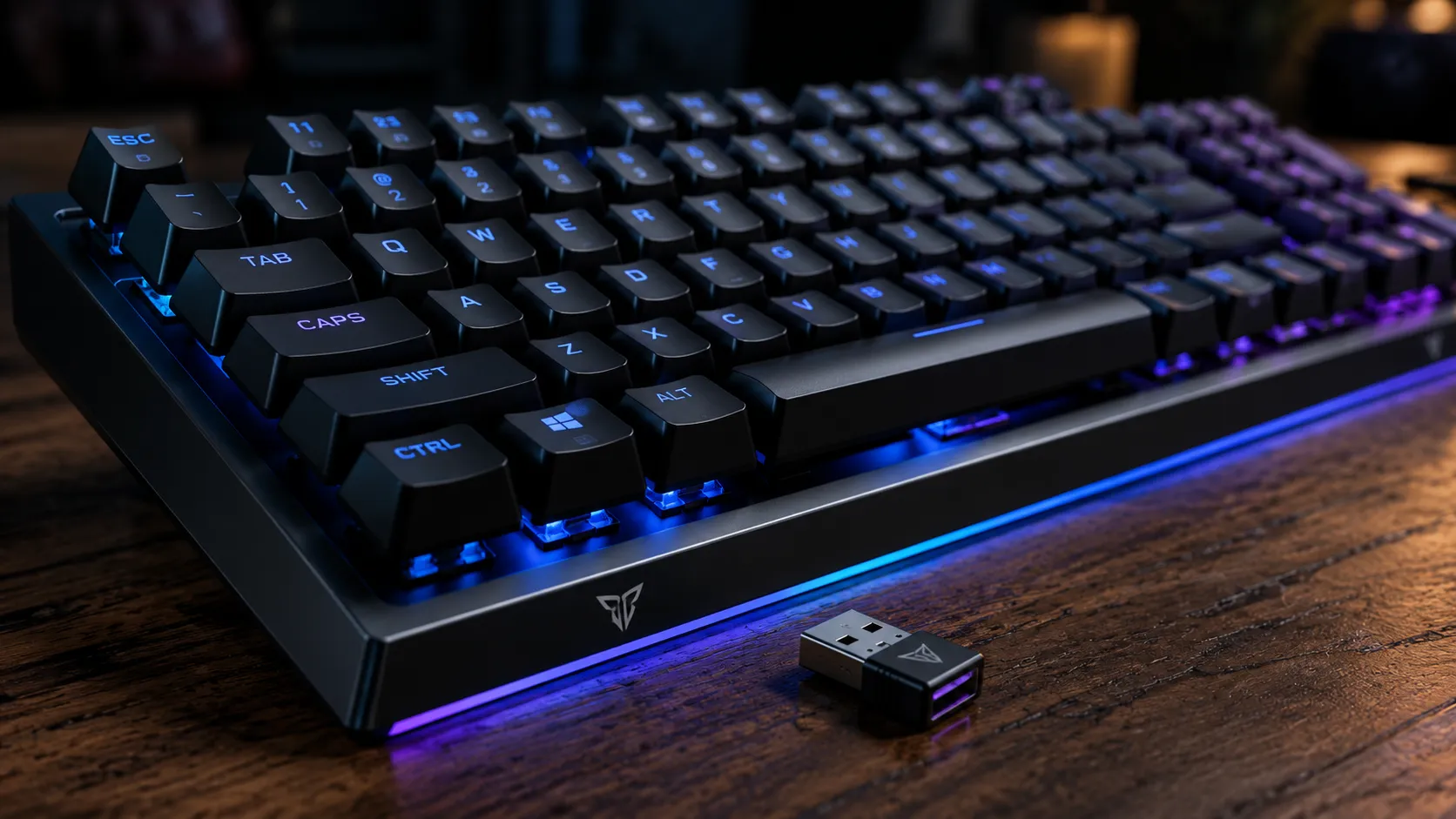
The USB receiver wants line of sight. If your dongle is plugged into the back of your tower, behind your case, with six feet of metal and PCB between it and your hands… that’s a red flag.
What I do: plug the dongle into a front USB port, or use the short USB extension cable that ships with most premium wireless boards (Logitech, Razer, and Corsair all include one in the box). Get the receiver within two feet of the keyboard, sitting on the desk surface, with nothing metallic between them.
This one change fixes maybe 40% of the connection complaints I see in my inbox. Try it before anything else.
2. Kill USB 3.0 interference — the silent killer
This one’s nasty, and almost nobody talks about it.
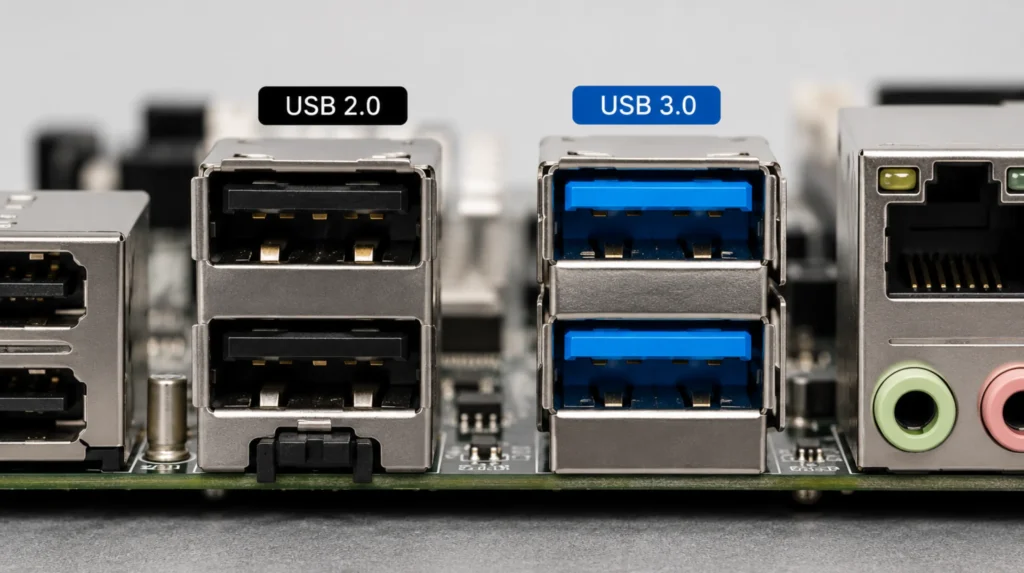
USB 3.0 ports leak RF noise right in the 2.4GHz band. Intel published a whitepaper on this back in 2012, and the problem hasn’t gone away. If your wireless dongle is plugged into a USB 3.0 (usually blue) port — or sitting right next to one with an active 3.0 device like an external SSD or a webcam — you’re going to get stutters.
Move the dongle to a USB 2.0 port (black, sometimes white). I know, “but USB 2.0 is slower.” Doesn’t matter for a keyboard. A keyboard sends a few KB/s at most. USB 2.0 has all the headroom you need and zero RF leakage in the band your dongle uses.
If your motherboard doesn’t have any 2.0 ports up front, grab a cheap powered USB 2.0 hub. It’s a $10 fix that saves a $200 keyboard.
3. Update firmware and disable USB selective suspend
Boring step. Critical step.
Open the manufacturer’s software — G Hub for Logitech, Synapse for Razer, iCUE for Corsair, Keychron Launcher for Keychron — and check for firmware updates on both the keyboard and the dongle. They update independently. Plenty of weird disconnect bugs from 2023 and 2024 got patched in firmware nobody bothered to install.
While you’re in there, on Windows go to:
- Power Options → Change plan settings
- Change advanced power settings
- USB settings → USB selective suspend setting
- Set it to Disabled (both on battery and plugged in if you’re on a laptop)
Windows likes to put USB devices to sleep to save half a watt. When it does that to your wireless receiver, your keyboard goes ghost for a half-second when you start typing again. That’s maddening in a Counter-Strike round and outright fatal in a fighting game.
4. Check polling rate and battery level
Most wireless boards default to a 1000 Hz polling rate. A few default to 125 Hz or 500 Hz to save battery. If yours feels laggy or inconsistent, push the rate up in the software.
The flip side: if you’re already at 1000 Hz and seeing drops, dial it back to 500 as a diagnostic. Some early HyperSpeed firmware on Razer keyboards was genuinely unstable at 1000 Hz in dense RF environments. Yes, even on a flagship board. Stable at 500 = your radio environment is the bottleneck, not the keyboard.
Battery matters more than people think. Lithium-ion cells lose voltage as they age. A three-year-old wireless keyboard sitting at 15% charge isn’t going to push as clean a signal as a fresh one at 80%. If your drops correlate with low battery warnings, that’s your answer. Charge it, or replace the cell if your board allows it. Keychron does; Logitech generally doesn’t.
For more on what polling rate actually means in practice, I broke it down in this piece on gaming keyboard latency.
5. Switch the wireless mode (or go wired as a diagnostic)
Most premium boards let you toggle between three modes: 2.4GHz dongle, Bluetooth, and wired USB.
- On Bluetooth and dropping? Switch to the 2.4GHz dongle. BT is fine for typing but shares the band with everything in your house.
- On the dongle and dropping? Plug in the USB cable as a temporary test.
- Wired is clean, wireless still drops? You’ve narrowed it down to a radio issue specifically — usually environmental.
That last result is actually useful information. It means your keyboard is fine. Your room is the problem.
When the issue isn’t your wireless gaming keyboard at all
If you’ve worked through all five steps and the drops continue, the culprit is almost certainly your environment, not your hardware. Here’s where to look next.
- Wi-Fi router on a crowded channel. If your router’s 2.4GHz radio is set to “auto” channel, it can hop into a slot your keyboard dongle is trying to use. Manually set your 2.4GHz Wi-Fi to channel 1, 6, or 11 — the three non-overlapping channels — and see if things improve. Better yet, push your devices onto 5GHz Wi-Fi entirely and stop competing with your keyboard.
- Other 2.4GHz peripherals. Logitech Unifying dongles, wireless headsets, older wireless mice, smart bulbs, Zigbee hubs. Each one is shouting in the same neighborhood. Move what you can.
- Microwaves, Bluetooth speakers, cordless phones. Yes, really. A running microwave 10 feet away can nuke a 2.4GHz wireless connection. If your drops happen at consistent times of day, look around the house.
- Thick desks, metal grommets, monitor arms. Anything metal between the dongle and the keyboard attenuates the signal. That fancy aluminum desk mat could be part of the problem. So could the steel cable tray under your desk.
2.4GHz dongle vs Bluetooth for gaming: use the right tool
Quick reality check, because I get this question constantly.
| Mode | Typical Latency | Best Use Case |
|---|---|---|
| 2.4GHz dongle | ~1ms | Gaming. Always. Dedicated link, lowest latency. |
| Bluetooth 5.0+ | 8–20ms | Office work, typing, switching between phone/tablet/PC. |
| Wired USB-C | 0ms | Gaming when wireless gives you trouble. The universal fix. |
If your board only does Bluetooth — and a lot of “wireless mechanical” boards do — it’s not really a gaming keyboard, regardless of how the marketing reads. That’s not a snobby take, it’s just physics. BT was never designed for low-latency input.
I went deeper into the full comparison in this wired vs wireless gaming keyboard breakdown if you want the numbers.
When to stop troubleshooting and just replace the board
Honest assessment time. Sometimes the keyboard is broken, or it’s just aging out.
Replace it if:
- Drops persist after every step above, on more than one PC
- Battery dies in hours instead of days on a board that used to last weeks
- The dongle is visibly damaged or won’t seat in any port properly
- The manufacturer dropped firmware support years ago
- You bought it for under $80 and “premium wireless” was a stretch from the start
That last one isn’t snobbery. Sub-$80 wireless gaming boards in 2026 frequently cut corners on the radio chipset or the antenna design. They work — until they don’t. If you’ve been fighting yours for months, the math on a $130–$180 mid-range board with proper LIGHTSPEED, HyperSpeed, or SLIPSTREAM tech starts looking very reasonable.
For a current rundown of wireless boards I actually recommend after living with them, see my low-latency gaming keyboard picks.
The verdict
Wireless gaming keyboard connection drops feel catastrophic in the moment. In practice, the fix is almost always boring: move the dongle, dodge USB 3.0 noise, update the firmware, kill USB selective suspend, check the battery. Five minutes of methodical work beats two weeks of frustration and a return shipment you didn’t need to send.
Run the flow first. Most of the time, the keyboard you’ve already got is fine. It just needs a little space to breathe.
This article contains affiliate links. If you buy through them, I earn a small commission at no extra cost to you. I only recommend keyboards I’ve actually tested. As an Amazon Associate I earn from qualifying purchases.

I’ve torn down, lubed, and rebuilt several hundred keyboards — from $20 membranes to $800 enthusiast boards. I review them honestly, even when “honestly” means telling you to skip the one with the bigger marketing budget.